Job management

Built for every job type you run

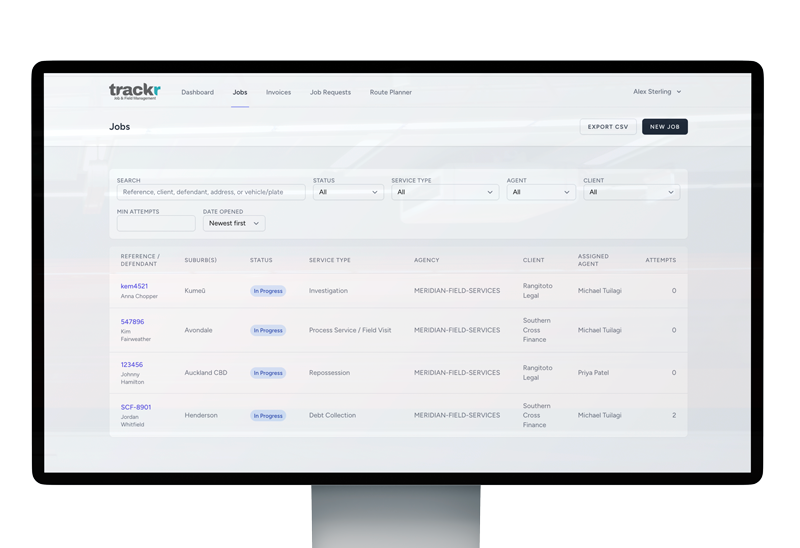
See how job management system Trackr manages process-serving, repossession, debt collection and investigation jobs — licence-checked agent assignment, distance-sorted agents, and automatic job numbering.
333
Job types

Job types

Most job-tracking software treats every job the same: a title, a status, a notes field. Trackr doesn’t, because a repossession isn’t a process-serving job with a different label — it needs a completely different set of information captured in the field.

Create a repossession job and the field agent logs a full vehicle condition report: odometer reading, WOF and rego expiry, tyre and upholstery condition, panel and paint damage, what was actually in the car when it was recovered. Create a debt-collection job and it runs through a proper financial assessment instead — the debtor’s contact details, employer, known assets, and an honest read on their ability to pay, captured at the point of contact rather than reconstructed from memory back at the office. Process-serving and investigation jobs stay lean, logged the same way as any other job with attempts and notes.

Every job type sits in the same system, assigned the same way, invoiced the same way — the difference is only in what gets captured once an agent is actually standing in front of the job.

Why one generic job record doesn’t work across these industries

A process-serving job, a repossession, a debt collection assessment and an investigation don’t share much in common beyond both involving a field agent going somewhere. Forcing all four into the same generic “job” record with a notes field means either the notes field carries all the real information in unstructured text, or the agency ends up tracking the industry-specific detail somewhere outside the system entirely — a separate spreadsheet for vehicle condition, a paper form for financial assessments. Trackr’s job types exist so the structured fields match the work, not the other way round.

What a field agent actually fills in

The difference shows up the moment an agent opens the job on their phone. A repossession job prompts for the specific fields a vehicle recovery needs — odometer, WOF and rego status, condition of tyres, upholstery and panels, and what was actually in the car. A debt collection job prompts for a financial assessment instead — the debtor’s contact and employer details, known assets, and an honest read on ability to pay, captured while the agent is standing in front of the person rather than reconstructed from memory afterwards. Process-serving and investigation jobs stay closer to a straightforward attempt-and-notes format, because that’s genuinely all those job types need.

Why capturing it in the field beats reconstructing it later

A vehicle condition noted from memory back at the office, hours after the recovery, is a weaker record than one logged with the vehicle still in front of the agent — and the same is true of a financial assessment written up after a conversation has already faded. Structuring the fields around the job type is what makes it realistic to capture that detail in the moment instead of relying on an agent’s memory or a follow-up call.

Still one system underneath

None of this splits Trackr into separate tools per job type. Every job — whatever type it is — gets assigned the same way, shows up in the same reporting, and gets invoiced the same way. The job type only changes what gets captured once an agent is actually on site; everything built around jobs generally, from licence-checked assignment to invoicing, works the same regardless of which type the job is.

Licence checked agent assignment

Licence checked agent assignment

Licence details usually live on a spreadsheet somewhere, separate from the job itself — which means assigning the wrong agent to a job they’re not licensed for is a genuine, easy mistake, especially when someone’s covering for a colleague or working fast.

Trackr closes that gap by checking it at the point of assignment rather than trusting someone to remember. Create a repossession job and the agent dropdown only offers agents who hold a current RPA licence on file. Create an investigation and only PI-licensed agents appear. It’s not a warning you can click past — an unlicensed agent isn’t in the list to begin with, and the same rule applies if you edit an existing job’s assignment later.

This runs on the actual licence field stored on each agent’s profile, checked server-side every time a job is saved — not a client-side hint that a determined user could work around.

Where the licence check happens

The licence Trackr checks is the one already stored on each agent’s profile — an RPA licence for repossession work, a PI licence for investigation work — rather than a separate credential system to maintain. Someone at the agency records it once when the agent’s set up, and Trackr uses that same field every time a job of that type gets assigned.

What changes in the assignment screen

Create a repossession job and the agent dropdown only lists agents who currently hold an RPA licence on file; create an investigation and only PI-licensed agents appear. It isn’t a warning that pops up after the fact and can be dismissed — an unlicensed agent simply isn’t an option in the list, so there’s no confirmation dialog to click through in a hurry.

Why this matters when someone’s covering

The situation this is really built for is the ordinary one: someone’s off sick, a colleague is covering their patch, and whoever’s assigning jobs that day doesn’t personally know every agent’s licence status off the top of their head. That’s exactly when an easy mistake happens on a spreadsheet-based system, and exactly when a dropdown that’s already filtered to the right agents prevents it without anyone having to think about it.

Checked again if a job gets reassigned

The same rule applies if a job’s assignment is edited later, not just at creation — reassigning a repossession to cover for someone still only offers agents with a current RPA licence. The check runs server-side against the licence field on the agent’s profile each time a job is saved, so it isn’t a client-side hint that’s only as reliable as whoever’s looking at the screen. It also sits underneath any other way an agency chooses who to assign — by proximity, by workload, or by who’s simply available — because the licence filter narrows the list first. Nobody has to remember to run a separate check before or after picking the closest or least busy agent; it’s the same dropdown, already filtered to the people who are actually allowed to take the job.

Nearest agent assignment

Nearest agent assignment

Working out which agent is actually closest to a job usually means opening a separate map, or just knowing your team’s usual patches well enough to guess. Neither scales once you’ve got more than a handful of agents or areas you don’t personally cover.

When you assign a job in Trackr, the agent list is already sorted by distance from the defendant or debtor’s address, with the distance shown in kilometres right next to each agent’s name. The agent geocoded as closest to the job is the one you see first.

One detail worth knowing: this is straight-line distance, not a driving-time estimate — a reasonable, fast approximation of who’s actually nearby, not a full route calculation. (For the driving-distance version of this same idea, see how Trackr calculates mileage for invoicing.)

Why this matters for time-sensitive fieldwork

Process serving, repossession and debt collection jobs are often time-sensitive in a way a lot of other fieldwork isn’t — a defendant needs to be served within a court-set window, a vehicle needs to be located before it’s moved, a debtor needs a knock before a deadline passes. Sending a job to whoever happens to come to mind, rather than whoever’s actually closest, adds travel time an agency doesn’t get back. Across a full day of jobs and a team of agents, that adds up to real hours lost to avoidable driving.

What this looks like when you assign a job

When you open the assignment screen, agents aren’t listed alphabetically or in whatever order they happen to appear — the list is already sorted by distance from the defendant or debtor’s address, with the distance in kilometres shown next to each name. The agent geocoded as closest sits at the top. You can still choose someone further away if there’s a good reason to — workload, cover, familiarity with the area — but the default the screen puts in front of you is the efficient one.

Working alongside licence checks

Distance isn’t the only thing that determines who’s eligible for a job. On job types that require it, Trackr also checks the agent’s licence at the point of assignment — a repossession job only offers agents holding a current RPA licence, an investigation only offers PI-licensed agents — so the distance-sorted list you see is already narrowed to agents who are actually allowed to take the job, not just physically near it.

Automatic job numbering

Automatic job numbering

A job-numbering spreadsheet is one of those small, boring problems every agency running on ad-hoc tools eventually hits: two staff create a job at the same time, both grab the “next” number, and now something’s duplicated or skipped.

Trackr assigns a reference number the moment a job is created, numbered per agency (so your numbering doesn’t reset or clash with anyone else using Trackr), and it’s generated inside the same database transaction as the job itself — there’s no race condition where two jobs created seconds apart could end up with the same number.

What it looks like in practice

A job number is assigned the instant a job is created — nobody has to open a separate spreadsheet, check what the last number used was, or type one in manually. From that point on, the same number follows the job everywhere it shows up inside Trackr: on the job itself, on any attempt logged against it, and on the invoice line if mileage or other charges get added later. Whoever picks the job up next, whether that’s another staff member or a field agent on the native iOS or Android app, is looking at the same reference number, not a locally-remembered one.

Why this matters for process serving, repossession and debt collection

Job numbers get used constantly in this kind of work — in emails to a client confirming a job’s been actioned, in phone calls asking about status, in paperwork that references a specific attempt. A duplicated or skipped number isn’t just untidy, it’s the kind of small error that makes a client wonder what else might be inconsistent. Removing the manual step where that error could creep in removes one recurring source of that doubt.

One reference number, used everywhere the job is

Because the number is attached at creation and never re-assigned, it stays useful as a lookup key for everything downstream. It’s what shows up if a staff member later filters a data export by job, and it’s what a client or referrer will naturally quote back when they email asking about a specific matter. Having one consistent number rather than several ad-hoc references — a file name here, a spreadsheet row there — makes it faster to find the right job regardless of which part of Trackr you’re looking from.

A small feature that removes a recurring source of friction

None of this is complicated in isolation, which is exactly why it’s easy to underrate. A job-numbering spreadsheet works fine for a while, until an agency is busy enough that two staff are creating jobs within seconds of each other, or a job needs to be referenced in a conversation weeks after it was logged. Automatic numbering removes that entire category of “which number did we use” problem before it has a chance to start.